
Picture your dashboards, reports, and analytics trapped behind invisible barriers: outdated, unavailable, or disconnected from the real-time pulse. This is what things process without the Data Gateway in Power BI. It’s greater than a connector; it is the warp factor secure and high-speed tunnel allowing your on-premises data to leap into the Power BI cloud service.
For Data Engineers, Analysts, and organizations, the decision about whether to understand gateways is now critical—it’s the basis for correct, fast, and secure decision-making. According to Gartner, by 2027, 60% of data and analytics leaders will face critical failures in managing synthetic data, risking AI governance, model accuracy, and compliance.
In this blog, we will go a bit deeper into gateway types, how gateways work, the setup process, and more. So, let’s get started.
What is a Data Gateway in Power BI?
A Data Gateway in Power BI is a secure tunnel through which all your on-premises data sources can access the Power BI service. It enables Power BI to query the data without moving it (ETL) and encrypting all traffic.
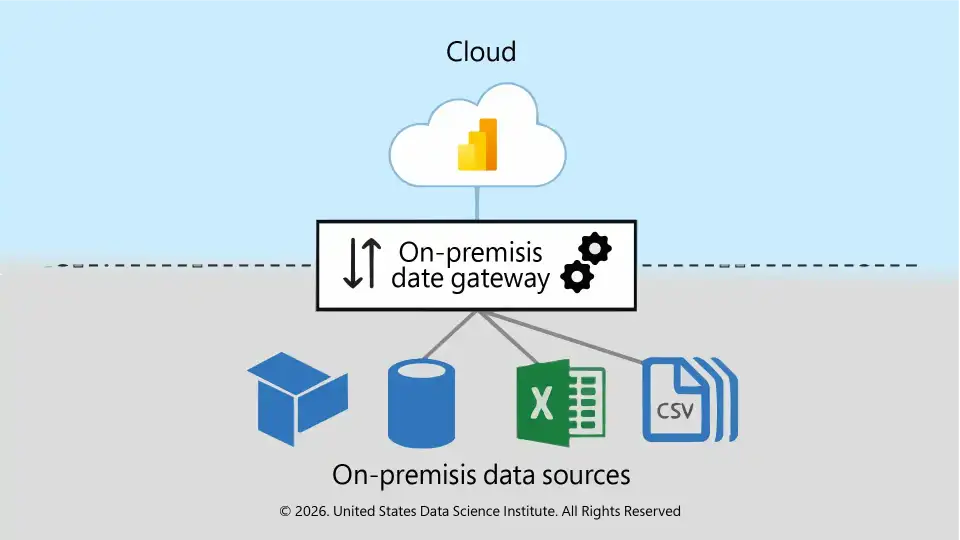
Key functions include:
Why Do You Need a Data Gateway?
Skip a gateway and watch your data workflows hamper:
Gateways guarantee data is trusted, secure, and available when you need it – the essential ingredient for Power BI within any enterprise.
Types of Power BI Data Gateways:
Power BI offers two main gateway types:
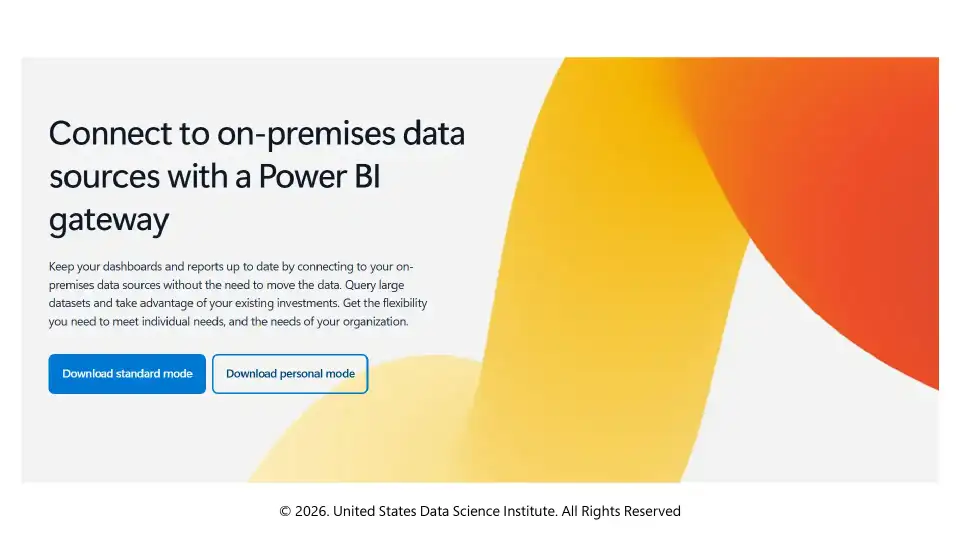
1. On-Premises Data Gateway (Standard Mode)
2. Power BI Gateway (Personal Mode)
How Does a Data Gateway Work (Step-by-Step Process)?
To allow access, you need to configure your Power BI Data Gateway as follows:
Step 1: Download and Install
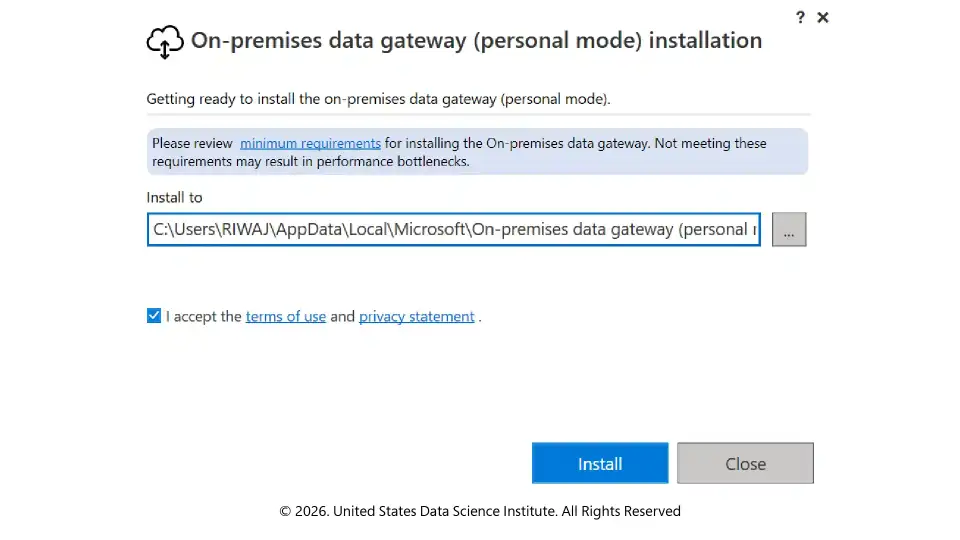
Read and accept the terms of use and privacy statement, and click on the install button, to install the Gateway.
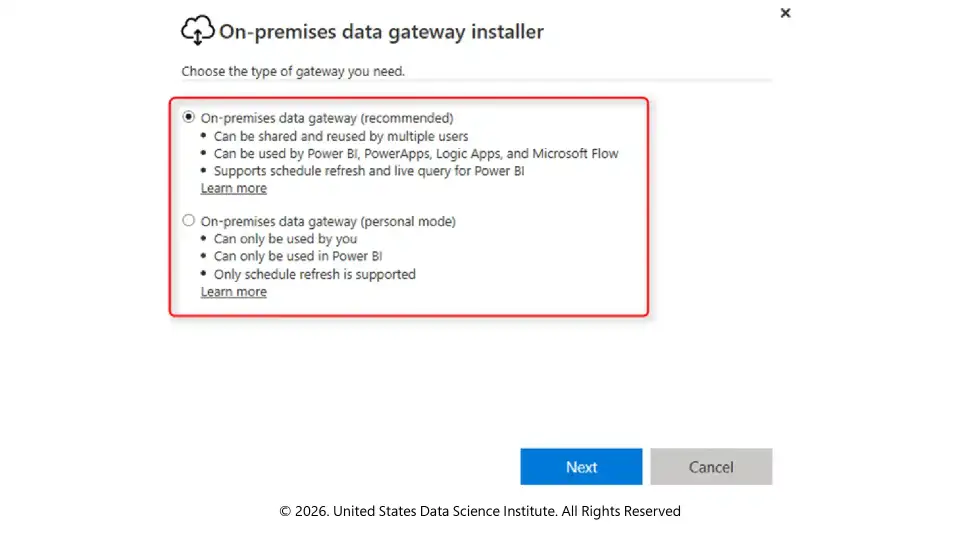
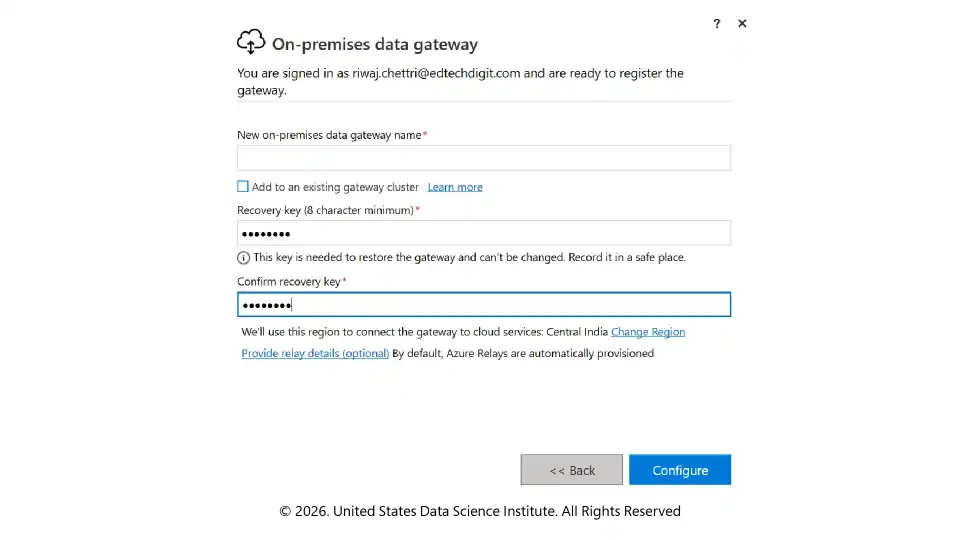
Step 2: Register the Gateway
Log in with your Power BI account.

Enter a gateway name
Step 3: Configure Data Sources
Step 4: Connect Your Dataset
Step 5: Schedule Refresh
Step 6: Enable High Availability (Optional)
Essential Best Practices for Data Gateways:
Wrap Up!
As you onboard, you’re on-premises data to the cloud, it means that dashboards are accurate and live and make sure you can take the right actions.
From knowing types and configuration to following best practices, a well-run gateway enables your team to make data-backed decisions. Do not be restricted by noisy data – use a gateway and let Power BI reach its full potential today!
Frequently Asked Questions
1. Does Power BI Data Gateway require inbound firewall ports to be opened?
No. The only connection type that the Data Gateway needs is outbound HTTPS (TCP 443). It never listens for requests from the internet, so as to keep the on-premises network safe behind the firewall.
2. Can multiple datasets use the same data source through one gateway?
Yes. A standard gateway can utilize a single data source configuration for different datasets if credentials mapping & permissions are set up properly in the Power BI Service.
3. Is Power BI Data Gateway compatible with Direct Query and Import mode simultaneously?
Yes. Direct Query, Live Connection, or Import mode refreshes can also be handled simultaneously by the same gateway, depending on how each dataset is set up.
This website uses cookies to enhance website functionalities and improve your online experience. By clicking Accept or continue browsing this website, you agree to our use of cookies as outlined in our privacy policy.